

Introduction
Redundant entry occurs when a multi-step journey requires users to enter the same information more than once in the same session. While re-entering information in a form can be annoying, it can also be a significant accessibility challenge for people with cognitive or memory-related difficulties.

Afia has a learning disability and often finds it difficult to fill out forms online. When entering her billing and delivery address to purchase clothes from her favourite brand, she finds it much easier if the website allows her to select from a pre-defined list of addresses, so she doesn’t have to type in the same information more than once.
Why is it important?
Everyone experiences mental fatigue when they fill out forms on a website or app, particularly if those forms involve multiple steps.
However, people with learning or cognitive disabilities (roughly 2.16% of UK adults) may be prone to mental fatigue due to reduced working memory or increased cognitive load. Recalling and re-entering information may be exhausting for these users and increase the likelihood of making a mistake or giving up entirely.
Entering the same information more than once is also difficult for people with specific physical disabilities, particularly those who may not have fine motor control and use switch or speech recognition software. It may take longer for these users to enter information or increase their chances of entering it incorrectly.
How to avoid redundant entry
Asking users to enter the same information more than once is an example of poor usability and may negatively impact those with access needs.
When designing journeys that require input, avoid the need to request the same information from users unless necessary. This will benefit people with learning or cognitive disabilities, save all users time, and reduce the risk of error.
To help users avoid entering the same information twice, use techniques such as:
- auto-populating information or,
- selecting previously entered answers.
Auto-populating information
Auto-populating information helps to reduce cognitive effort, as it reduces the need to recall the information provided in a previous step.
An example of where auto-populating information is helpful is forms that ask for a delivery and a billing address. Many websites provide a checkbox to select if the billing address is the same as the delivery address, reducing the need to re-enter the address information again.
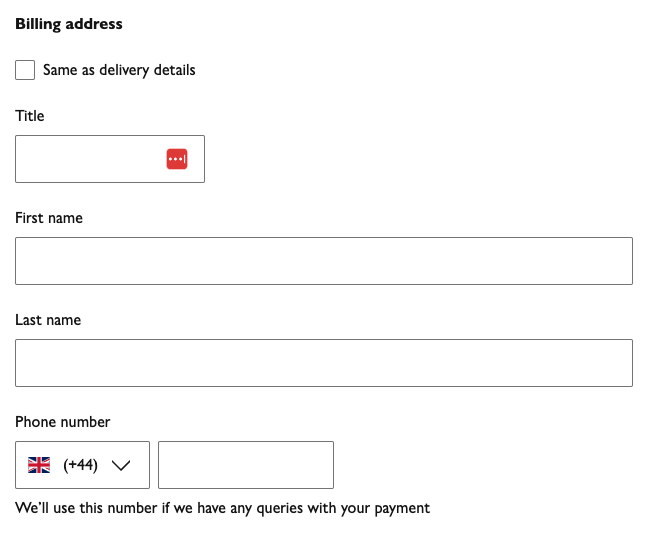
Figure 1: The John Lewis website provides a checkbox to allow users to select the same billing address as delivery address at checkout
Note: A browser’s auto-complete feature is not a sufficient technique to avoid redundant entry concerns. The website or app itself must provide the functionality to avoid redundant entry.
Selecting previously entered answers
Providing a way for users to select from previously entered information is a different way to mitigate the need for users to enter the same information. This could include:
- Selecting information from a dropdown menu, or
- Selecting text from the page and copying it into a field.
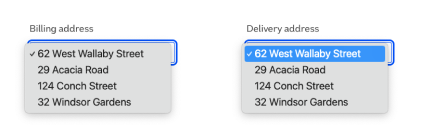
Figure 2: Previously entered addresses are selectable from a dropdown menu for billing and delivery addresses
When is redundant entry necessary?
In some cases, redundant entry is necessary, and it’s impossible to avoid it. These are:
- Memory games where the game wouldn’t be playable if the previous answers were provided.
- Security measures, such as asking users to confirm a password or
- When previously entered information is no longer valid, the user must enter it again, for example, updating the card details for a declined payment.
Things to check
- Check if there are form fields in the journey that ask for redundant (previously entered) information and are not covered by exceptions (e.g., security, necessity, no longer valid).
- If redundant entry exists, check if the form fields are:
- Auto-populated (but not by browser auto-complete functionality)
- Available for the user to select from previously entered information, e.g., from a dropdown or a checkbox, or
- It’s possible to copy and paste from and to the form fields.
- If redundant entry exists, check if the form fields are:
Thank you for your feedback