

Testing websites using Windows High Contrast Mode or “contrast themes” is essential to web accessibility. It ensures that the site remains usable for people who rely on contrast settings due to visual impairments or other reasons.
Test environment
You’ll need to ensure your testing environment supports Windows High Contrast Mode. Windows High Contrast Mode is available from Windows 7 and up.
Currently, BrowserStack Live does not support manual testing of high contrast mode with standard browser testing for Windows. However, BrowserStack Automate does allow for screenshot testing if this is part of your testing process.
Due to this limitation, for manual testing, you’ll need to test on an actual Windows device or use virtualisation software such as Parallels on a Mac. You’ll need a licence to run Parallels and a Windows development licence, which will come under a business area or project budget.
Test Steps
Step 1: Turn on High Contrast mode
To turn it on:
- For Windows 10, from the sign-in screen, select Settings > Ease of Access > High contrast.
- For Windows 11, from the home screen, select Settings > Accessibility > Contrast Themes.
- To activate WHCM with keyboard shortcuts, press ‘left alt’ + ‘left shift’ + ‘print screen’.
- Select from the four available themes or create your own. Once you’ve selected a theme, Windows may display a “Please wait” screen for a few seconds, after which the colours on the screen will change.
To turn it off:
- Windows 10 – go to Settings > Ease of Access > High Contrast, and select the toggle button under the high contrast settings.
- Windows 11 – Go to Settings > Accessibility > Contrast Themes. Select ‘none’ from the dropdown menu and press ‘Apply’.
- To turn off WHCM with keyboard shortcuts, press ‘left alt’ + ‘left shift’ + ‘print screen’.
You’ll need to test with a light and dark theme to make it easier to see if there are issues:
Light themes
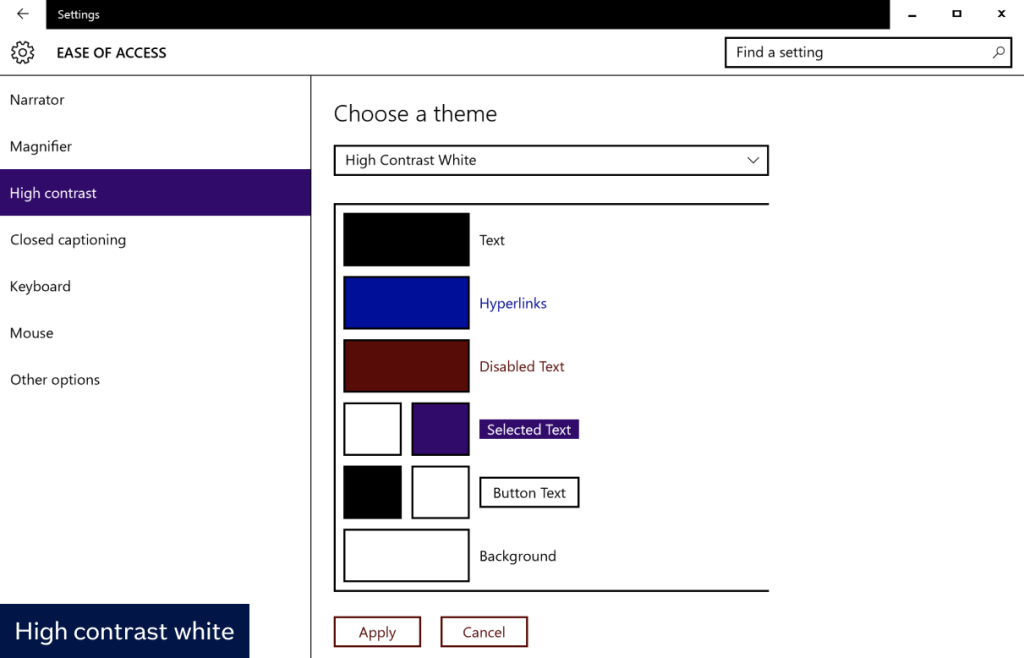
High contrast white theme for Windows 10
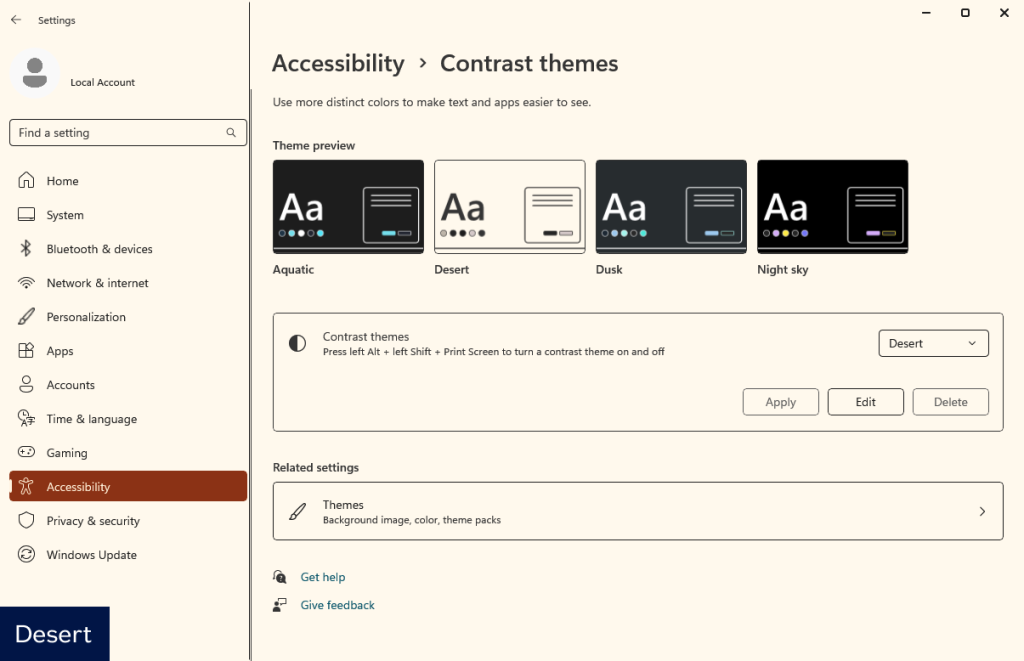
Desert theme for Windows 11
Dark themes
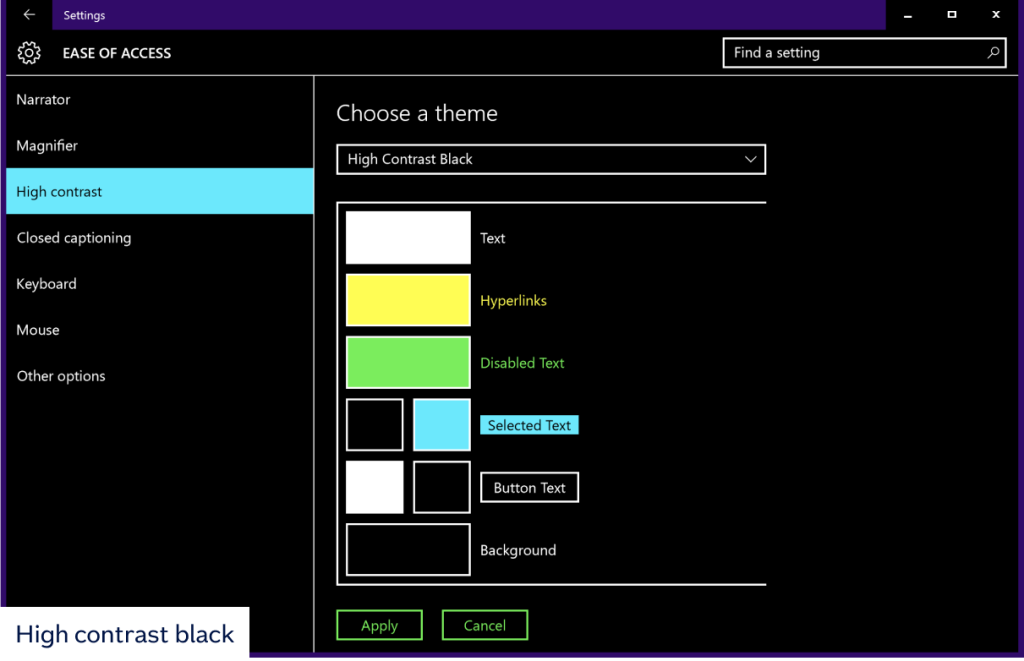
High contrast black theme for Windows 10
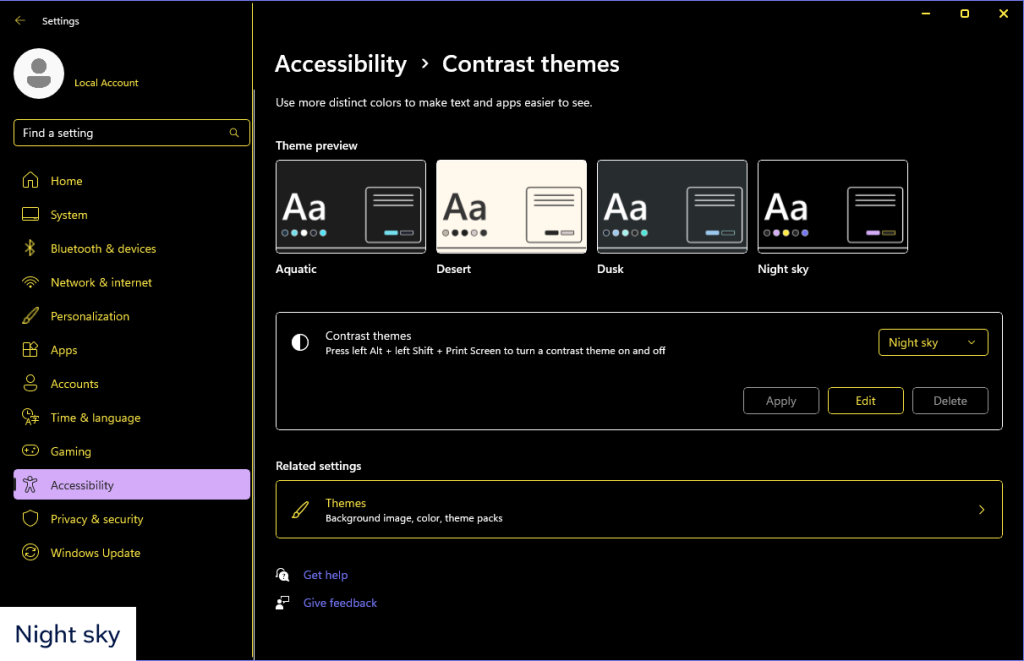
The night sky theme for Windows 11
Step 2: Open Edge and go to the testing URL
Open Edge (the default browser on Windows) to test High Contrast mode as it has the best support for this display mode. Other browsers don’t support WHCM consistently.
In the browser address bar, navigate to or type in the testing URL for the component or page.
Step 3: Test each component or web page with each theme
Check that:
1. All text is visible and displays in colours appropriate to the chosen theme.

Wrong: The text in the logo does not inherit the text colour of the selected theme

Right: The text in the logo displays in the text colour of the selected theme.
2. colours of icons and graphics reflect those of the selected theme.

Wrong: Icon buttons are not easily visible as they do not inherit the theme colours
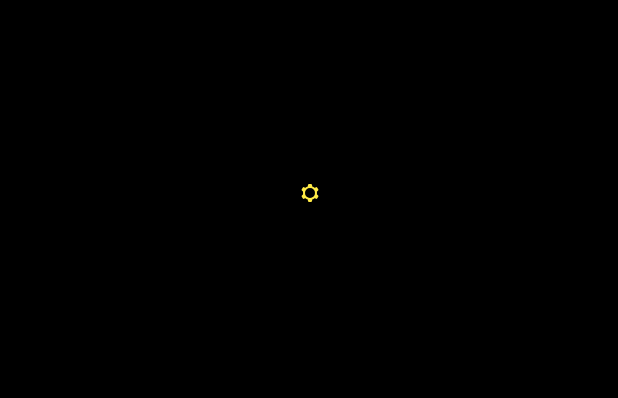
Right: Icon buttons correctly inherit the theme colours
3. Interactive elements such as buttons are visually distinct with appropriate background colours or borders.

Wrong: Button without a background colour or borders to make it visually distinct
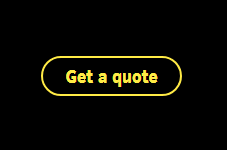
Right: Button with borders to visually distinguish it as a button
4. Interactive elements have hover and focus states, and the colours for the states reflect those of the chosen theme.
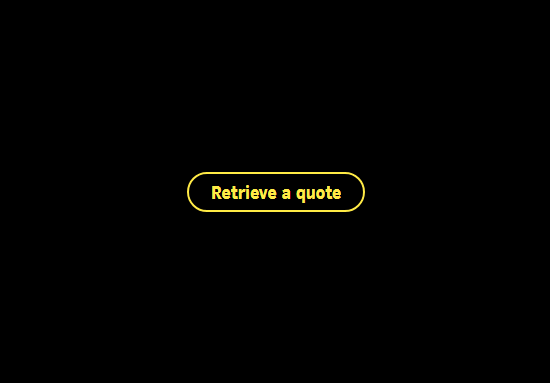
Wrong: A button without a focus state
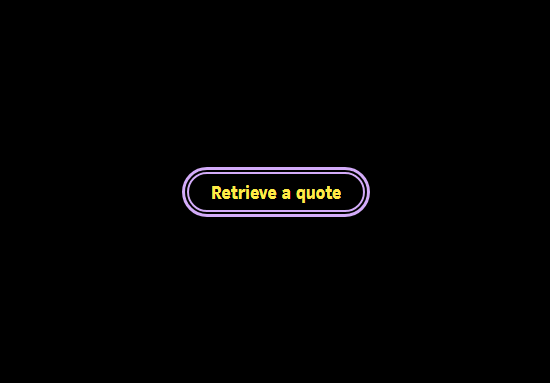
Right: A button with a focus state
5. Form elements have selected and un-selected states, and the colours for the state reflect those of the chosen theme.
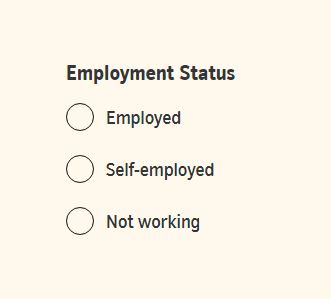
Wrong: The radio button selected state is missing.
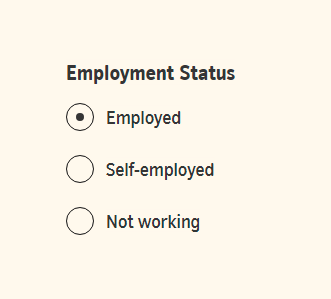
Right: The radio button selected state is visible
6. There are no missing background colours for elements where colours should be maintained, such as colour swatches.
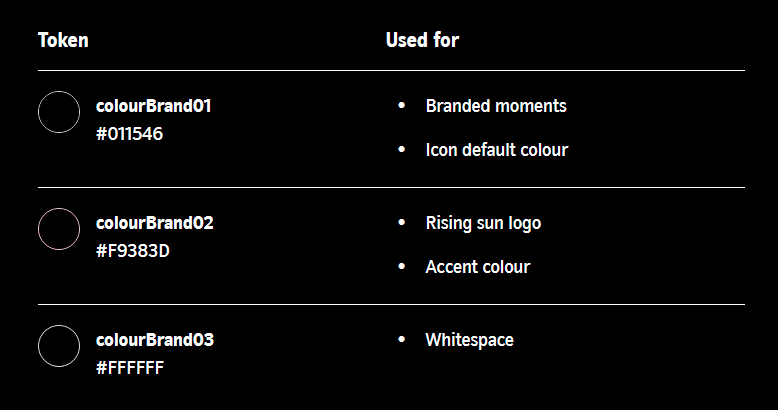
Wrong: The colours for the tokens are missing
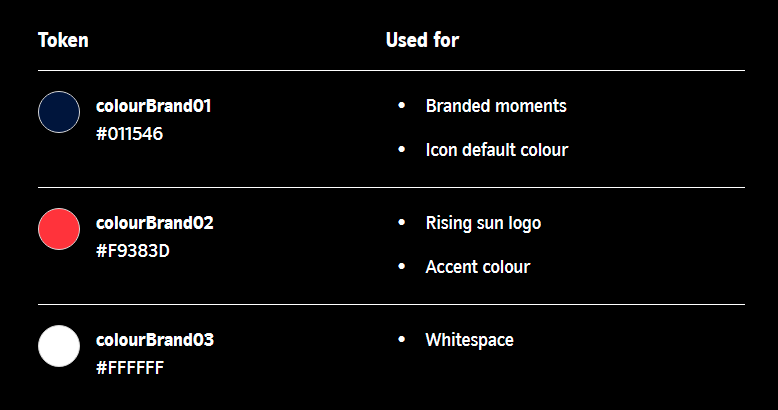
Right: Colours for the tokens are visible.
Step 4: Document any issues
Use Jira or relevant issue tracker to document any issues found in Windows High Contrast mode. Include as much information as possible about the issue including:
- URL
- Issue description or summary
- The name of the active theme
- Steps to replicate the issue
- Severity
- Screenshots
Thank you for your feedback